




Your laptop should feel warm when it is working hard. It should not sound like it is about to take off, burn your legs through the chassis, or shut itself down in the middle of a job. If you are trying to work out how to diagnose laptop overheating, the goal is not to guess. It is to separate normal heat from a fault, then identify whether the cause is airflow, software load, a failing fan, dried thermal paste, or something more serious on the board.
A lot of people leave it too long because the machine still turns on. The problem is that overheating rarely fixes itself. Heat puts stress on the battery, SSD, fan, charging circuit and processor. Left unchecked, it can turn a simple service into a more expensive repair.
What counts as overheating?
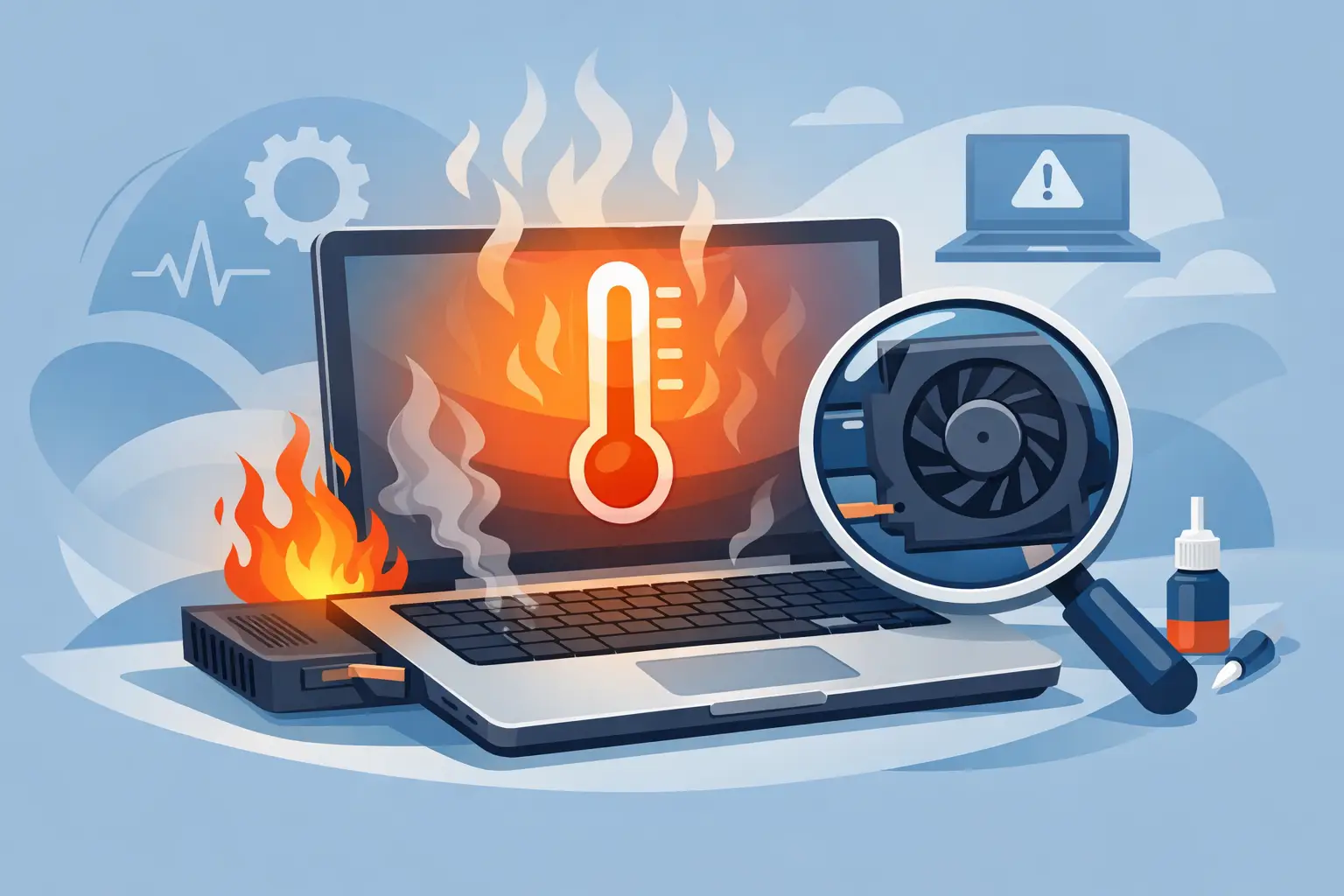
Warm air from the exhaust vent is normal. A rise in fan noise during updates, gaming, video calls or photo editing is also normal. Overheating starts to look different. The laptop becomes too hot to use comfortably, slows down for no clear reason, freezes under load, restarts unexpectedly, or displays a warning before shutting off.
The key point is consistency. If the laptop only gets hot while rendering video or running a game, that may be expected. If it overheats while browsing, writing documents or sitting idle on the desktop, there is usually a fault worth investigating.
How to diagnose laptop overheating step by step
Start with the simplest checks first. Good diagnosis is about ruling things out in the right order rather than replacing parts blindly.
Check where and how the laptop is being used
A surprisingly common cause is restricted airflow. Soft furnishings, duvets, carpet and even your lap can block the intake vents underneath. Some slim laptops also draw air through the keyboard area, so a case cover or dust build-up around the keys can make things worse.
Place the laptop on a hard, flat surface and use it there for a while. If temperatures and fan noise improve, the device may not have a hardware fault at all. It may simply be starved of air in normal use.
Room temperature matters as well. On a hot day, a laptop with a borderline cooling system may tip over into thermal shutdown much sooner.
Listen to the fan and watch its behaviour
A healthy fan does not always mean a healthy cooling system, but the sound tells you a lot. If the fan never spins up, starts and stops erratically, rattles, grinds or clicks, there may be a mechanical failure. If it runs constantly at high speed even when the laptop is doing very little, either the system is under hidden load or the heat is not leaving the heatsink properly.
A failed or weak fan is one of the easier faults to identify. The harder cases are where the fan is working but dust has packed into the heatsink, preventing hot air from escaping.
Feel for airflow at the exhaust vent
This is a basic but useful test. With the laptop powered on and under some load, you should usually feel a steady stream of warm air from the exhaust vent. If the fan is noisy but there is very little air coming out, dust blockage is likely. If there is no airflow and no fan sound, the fan may have stopped working or the control circuit may have an issue.
Do not push sharp objects into the vent or blast compressed air blindly into the machine. That can force dust deeper inside or damage the fan blades.
Check Task Manager for hidden load
One of the fastest ways to diagnose laptop overheating is to look at what the system is doing when it gets hot. Open Task Manager and sort processes by CPU, memory and disk usage. On a Mac, use Activity Monitor for the same purpose.
If a browser tab, update service, antivirus scan, background sync app or malware process is keeping CPU usage high, the heat may be a software symptom rather than a cooling failure. This matters because cleaning the fan will not solve a software process that is permanently hammering the processor.
If usage stays high at idle, there is usually something worth investigating. If usage drops but temperatures remain excessive, the cooling hardware becomes the more likely culprit.
Signs the problem is inside the laptop
Once you have ruled out usage habits and obvious software load, the next question is whether the cooling system itself is struggling.
Dust build-up in the fan and heatsink
Dust is one of the most common causes of overheating, especially in older laptops or homes with pets. The problem is not just visible fluff around the vent. Fine dust often packs itself into the cooling fins, creating a felt-like barrier that stops heat escaping. The fan then works harder and harder while the processor keeps getting hotter.
This can often be confirmed by a combination of symptoms: loud fan noise, poor airflow, rising temperatures under light use, and thermal throttling.
Dried thermal paste
Thermal paste sits between the processor and heatsink to transfer heat efficiently. Over time it can dry out, crack or lose effectiveness. When that happens, the processor temperature climbs quickly, sometimes even though the fan is running normally.
This fault is harder for most users to confirm without opening the laptop. It is more common in older devices, machines that have seen heavy use, or laptops that have already had poor-quality previous repair work.
Battery or charging-related heat
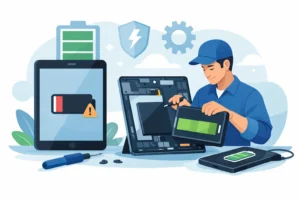
Not all heat comes from the CPU or GPU. A failing battery can run hot during charging, and a charging circuit fault can create localised heat around the power input area or motherboard. If the laptop gets much hotter when plugged in, charges slowly, or shows battery swelling, stop using it and get it checked properly. That is not a fault to ignore.
Software tools can help, but they do not tell the whole story
Temperature monitoring software can be useful if you know what you are looking at. It can show whether the CPU is idling at an unusually high temperature, whether the temperature spikes instantly under load, and whether the system is throttling to protect itself.
The trade-off is that raw numbers can be misleading. Different processors run at different normal ranges, and thin laptops often run hotter than larger business machines. A reading that looks high on one model may be expected on another. What matters more is the pattern. Rapid climbing, shutdowns, and high idle temperatures are stronger warning signs than a single number on its own.
If the laptop is shutting down before you can gather useful data, that usually points to a cooling issue serious enough to need hands-on inspection.
When not to attempt a DIY fix
Some laptops are straightforward to open. Others hide the fan beneath the motherboard, use delicate clips, or have batteries glued in place. If you are not confident working inside small electronics, forcing the case open or disconnecting the wrong cable can create a second fault.
Be especially careful if you notice these problems:
- the base is bulging
- the battery area feels unusually hot
- there is a burning smell
- the laptop turns off as soon as the charger is connected
- liquid damage may be involved
Those symptoms can point to more than dust. In those cases, proper diagnosis with professional tools is safer than trial and error.
What a proper repair diagnosis should include
A good overheating diagnosis is not just a quick spray of air into the vents. It should confirm whether the issue is blocked airflow, fan failure, dried thermal paste, software load, battery heat, or board-level trouble.
In practice, that means checking fan operation, inspecting the internal cooling path, assessing thermal compound condition, testing performance under load, and ruling out background software or malware that keeps the machine under constant strain. On some units, especially gaming laptops and high-performance work machines, both CPU and GPU cooling need to be examined because one can mask the other.
This is where speaking directly to a technician helps. A proper repair should fix the cause of the heat, not just the symptom.
When to book a professional overheating check
If your laptop is hot, noisy and slowing down, you can start with safe basics such as changing surface, checking background usage and watching for airflow. If it is shutting down, getting dangerously hot, or showing signs of battery swelling or charging-related heat, do not keep using it in the hope it settles down.
For customers around Bracknell and nearby areas, this is the sort of fault that is usually worth checking sooner rather than later. At iRepair, overheating faults are diagnosed properly so you know whether the answer is a clean-out, fan replacement, thermal paste service, battery repair or deeper board-level work. That saves time, avoids guesswork and reduces the chance of heat damaging other components.
A hot laptop is not always a dying laptop, but it is always a sign worth taking seriously. Catch it early, and you usually have more repair options and a better chance of keeping the machine reliable.